Lambo Play iOS App: How to Install on iPhone and iPad
Is There a Lambo Play App in the Apple App Store?
As of now, Lambo Play does not offer a native app in the official Apple App Store. Most online casinos and sportsbooks serving the Philippines choose not to list their apps in the App Store due to Apple's strict policies around real-money gambling applications.
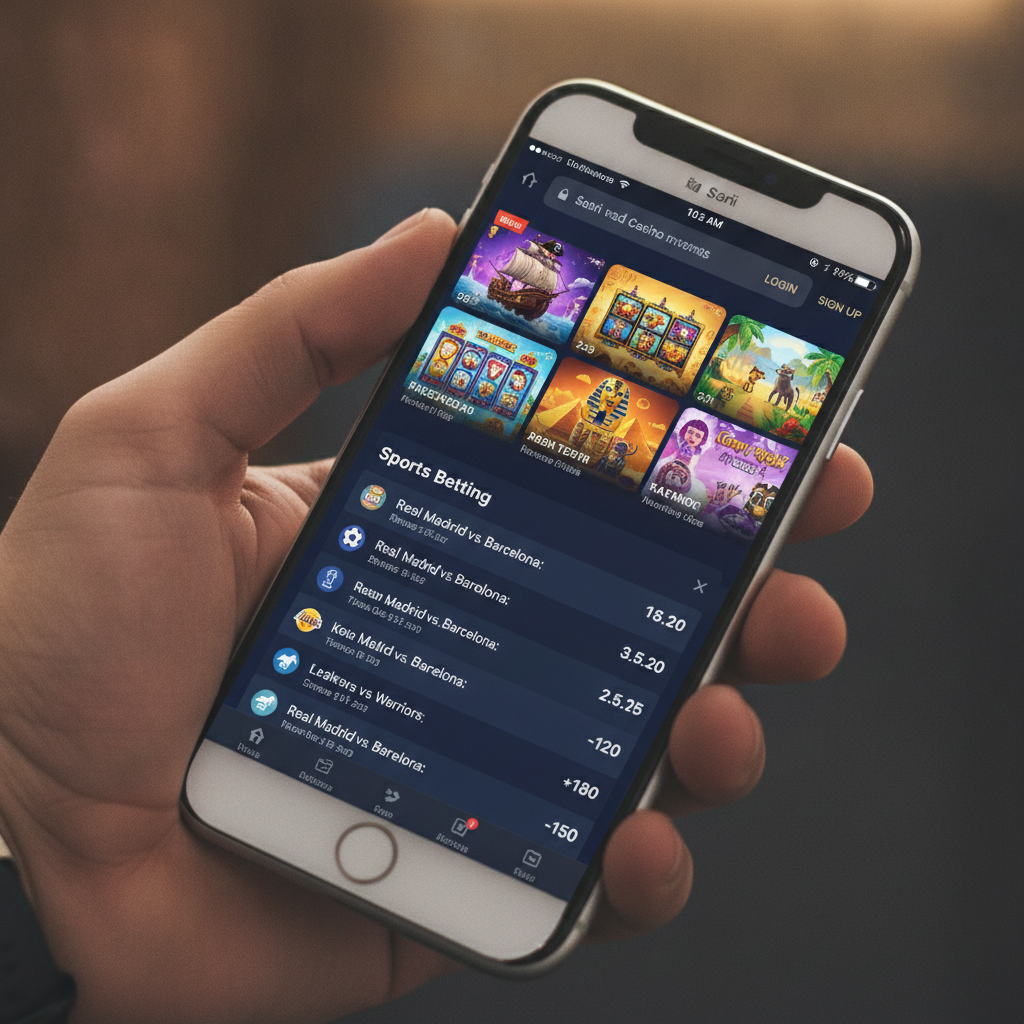
This does not mean iPhone and iPad users are locked out. Lambo Play provides alternative ways to access its slots, live dealer tables, and sports betting features on iOS devices. Players typically use either a mobile-optimized browser version or download an iOS web app profile directly from the Lambo Play site.
The mobile browser version works immediately—no installation required. The web app profile, if offered, adds a home screen icon and can provide a more app-like experience without going through Apple's official review process.
Both methods let you deposit and withdraw with GCash or Maya, place bets on PBA and NBA games, and spin slots, all from your iPhone or iPad.
How to Install the Mobile Web App or Download an iOS Profile (If Available)
If Lambo Play offers an iOS web app or configuration profile, you will find the download link on the operator's official website. The process differs from a standard App Store download, so follow these steps carefully.
Step 1: Visit the official Lambo Play website
Open Safari on your iPhone or iPad. Type the official Lambo Play URL into the address bar. Avoid clicking links from social media or unknown sources—always go directly to the verified site to protect your account and payment information.
Step 2: Look for the iOS download or "Add to Home Screen" prompt
Once on the site, check the top banner or menu for an "iOS App" or "Download for iPhone" button. Some operators display a pop-up inviting you to install the web app; others place the link in the footer or a dedicated "Mobile" section.
If Lambo Play offers a configuration profile (a file ending in .mobileconfig), tapping the download button will trigger a system prompt asking whether you want to allow the download. Tap "Allow."
Step 3: Open the downloaded profile
After the profile downloads, iOS will display a message that a profile is ready to install. Tap "Close" on the download notification, then go to your iPhone's Settings app.
In Settings, you should see a new entry near the top labeled "Profile Downloaded" or "VPN and Device Management." Tap that entry.
Step 4: Install the profile
You will see the details of the configuration profile. Review the name—it should match Lambo Play or its parent company. Tap "Install" in the top-right corner.
iOS will ask you to enter your device passcode to confirm. Enter your passcode, then tap "Install" again on the confirmation screens. Once installation completes, tap "Done."
The profile adds a web app icon to your home screen. This icon opens Lambo Play in a standalone browser window without Safari's address bar, creating an experience that feels closer to a native app.
If no profile is available:
Lambo Play may instead rely on Safari's built-in "Add to Home Screen" feature. To use this:
- Open the Lambo Play site in Safari.
- Tap the Share button (the square with an arrow pointing up) at the bottom of the screen.
- Scroll down and tap "Add to Home Screen."
- Edit the icon name if you like, then tap "Add."
An icon will appear on your home screen. Tapping it launches Lambo Play in a standalone Safari window.
Trusting the Developer Certificate on Your iPhone Settings
If you installed a configuration profile or web app, iOS may require you to trust the developer certificate before the app will open. This step is necessary because the app was not distributed through the App Store.
Step 1: Tap the app icon
Try to open the Lambo Play app from your home screen. If the certificate is not yet trusted, iOS will display an "Untrusted Enterprise Developer" error and prevent the app from launching.
Step 2: Open Settings and navigate to General
Go to your iPhone's Settings app, then tap General.
Step 3: Tap "VPN & Device Management" or "Device Management"
The exact label varies depending on your iOS version. Look for an entry called "VPN & Device Management," "Profiles & Device Management," or simply "Device Management."
Step 4: Select the developer profile
Under the "Enterprise App" or "Developer App" heading, you will see the name of the Lambo Play certificate. Tap it.
Step 5: Trust the developer
On the certificate details screen, tap the blue "Trust [Developer Name]" button. A confirmation dialog will appear warning you that trusting this developer will allow apps from that developer to run on your iPhone. Tap "Trust" again.
Step 6: Return to your home screen
Press the home button or swipe up to exit Settings. Tap the Lambo Play icon again. The app should now open without error.
Keep in mind that if Lambo Play updates its certificate or issues a new profile, you may need to repeat this trust process. The operator will typically notify users via email or an in-app message when a certificate renewal is required.
Using the Mobile Browser Version If No Native App Exists
If you prefer not to install a profile, or if Lambo Play does not currently offer one, the mobile browser version is a reliable alternative. The site is built to work smoothly on Safari and other iOS browsers, and you will have full access to deposits, withdrawals, betting, and customer support.
Advantages of the browser version:
- No installation steps: Open Safari, type the URL, and log in.
- Automatic updates: The site updates on the server side; you never need to download a new version.
- No certificate warnings: Since you are browsing a standard website, iOS does not require you to trust a developer certificate.
How to use the browser version effectively:
- Bookmark the site: Tap the Share button in Safari, then "Add to Favorites" or "Add Bookmark." This saves a shortcut for quick access.
- Stay logged in: Lambo Play will remember your session if you enable cookies in Safari. Go to Settings > Safari and ensure "Block All Cookies" is turned off.
- Use landscape mode for live dealer games: Rotating your iPhone to landscape gives you a larger view of the table and controls, making live baccarat, blackjack, and roulette easier to follow.
- Check your connection: Sports betting odds and live dealer feeds require a stable internet connection. Switch between Wi-Fi and mobile data if you experience lag or loading errors.
The mobile browser version supports GCash and Maya deposits and withdrawals, InstaPay and PESONet bank transfers, and the same range of slots, jackpot games, and PBA or NBA betting lines available on Android or desktop.
If you run into login issues, clear Safari's cache by going to Settings > Safari > Clear History and Website Data. This often resolves problems with outdated session tokens or stored credentials.
21+ Only; Use Screen Time Limits If Needed
Lambo Play is restricted to players aged 21 and over. This age requirement is standard across licensed and authorized online casinos and sportsbooks in the Philippines.
If you share your iPhone or iPad with family members, or if you want to set personal limits on how much time you spend on the platform, iOS includes built-in tools to help.
Set up Screen Time restrictions:
- Open Settings > Screen Time.
- Tap "App Limits," then "Add Limit."
- Choose "All Apps & Categories" or select Safari and any installed web apps.
- Set a daily time limit (for example, one hour). iOS will notify you when time is nearly up and block access once the limit is reached.
You can also use "Downtime" to schedule periods when gambling apps are unavailable—helpful if you want to avoid late-night betting or restrict access during work hours.
Responsible gambling reminders:
- Set a budget before you deposit. Decide how much you can afford to lose and stick to that amount.
- Never chase losses. If you hit your limit, log out and take a break.
- Use the self-exclusion or cool-off features Lambo Play offers if you feel your play is becoming problematic.
- Reach out to support if you need help adjusting deposit limits or taking time away from the platform.
Gambling should be entertainment, not a way to make money or solve financial problems. If you or someone you know is struggling, contact a local support service for confidential help.
Summary: Lambo Play does not appear in the Apple App Store, but iPhone and iPad users can install a web app profile or use the mobile browser version for full access to slots, live dealer tables, and sports betting. If you install a profile, remember to trust the developer certificate in your iOS settings. The browser version works instantly and updates automatically. Both methods support GCash, Maya, InstaPay, and PESONet for deposits and withdrawals. Players must be 21 or older, and iOS Screen Time tools can help manage usage and promote responsible gambling.